Print-Ready PDF for IngramSpark: An Author's Guide
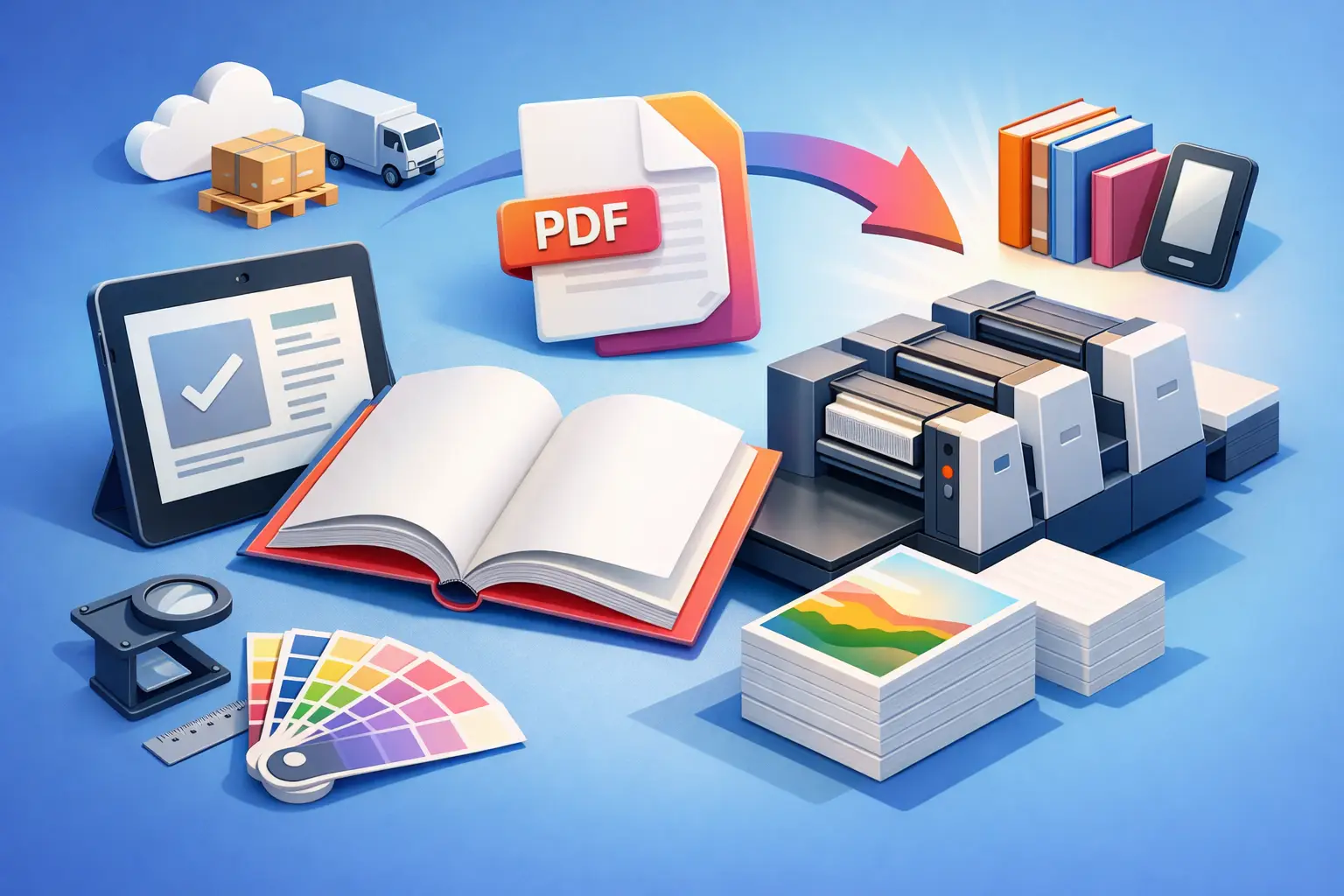
A rejected upload usually comes down to one thing: the file looked finished, but it was not built to spec. Getting a print-ready PDF for IngramSpark right means handing off a production file that survives automated checks, print manufacturing, and retail distribution without breaking.
A manuscript can be edited, proofread, and beautifully laid out, but if the trim size is off, the cover spine width is wrong, or the fonts are not embedded, IngramSpark will stop the process fast. The fix is not guesswork. It is knowing what the platform expects and building your files around those requirements from the start.
What IngramSpark means by a print-ready PDF
A print-ready PDF for IngramSpark is a production-safe file prepared for commercial printing. Your interior and cover files need to match exact technical standards. The interior PDF must be sized to the final trim, with consistent margins, embedded fonts, proper image resolution, and no surprise transparency or color issues. The cover PDF must match the template generated for your specific book format, page count, and paper choice.
A PDF that prints fine on a home printer is not automatically acceptable for offset or digital print workflows. IngramSpark is checking whether the file can be manufactured predictably at scale. If your layout choices create ambiguity, the system flags them.
The two files you need
IngramSpark expects two separate PDFs: one for the interior and one for the full cover spread. The interior is your book block only. The cover is a single file containing the back cover, spine, and front cover laid out to template dimensions.
That distinction matters because each file has different failure points. Interior files tend to fail on trim size, margins, page numbering issues, low-resolution images, and font problems. Cover files tend to fail on incorrect dimensions, spine miscalculation, barcode placement, and text falling into unsafe areas.
If you treat both files as design assets instead of production assets, you raise your rejection risk.
Interior setup for a print-ready PDF
The interior starts with trim size. Your PDF page dimensions must exactly match the trim size you selected for the book. If you choose 6 x 9, your PDF pages need to be 6 x 9. Not close. Exact.
Margins need the same level of care. IngramSpark requires enough inside margin, or gutter, to account for binding. The thicker the book, the more this matters. A layout that looks balanced on screen can feel cramped in print if the gutter is too narrow. For novels and memoirs, this often shows up as text disappearing into the spine. For academic or professional books, tables and footnotes can become hard to read.
Image quality is another common issue. Interior images should generally be 300 dpi at final print size. If an image was pulled from a website, there is a good chance it is too low resolution for print. That does not always look obvious until the proof arrives and the image looks soft or muddy.
Fonts must be embedded. If they are not, text can reflow or substitute unexpectedly when the file is processed, creating line breaks, page shifts, or missing glyphs. Authors often miss this because the PDF appears normal on their own device.
Color choice also depends on your print plan. If your interior is black and white, color images may convert poorly unless you prepare them with print in mind. Grayscale conversions can flatten contrast and make charts, shaded boxes, or photographs harder to interpret. Test those pages carefully before export.
Cover setup is where precision gets expensive
The cover file causes more anxiety because small mistakes are highly visible. Your full cover PDF has to match the exact template for your trim size, binding type, paper color, and page count. Change the page count, and the spine width changes. Change the paper stock, and the spine width can change again.
That means you should not finalize the cover before the interior pagination is locked. If your manuscript grows or shrinks after design, the old cover template may no longer be valid. This is one of the easiest ways to create a rejected file or, worse, a printed book with off-center spine text.
Bleed matters too. If your cover background or imagery extends to the edge, it needs proper bleed beyond the trim line. Safe zones matter just as much: titles, author names, and logos should stay out of trim and fold-risk areas. Technically valid files can still produce weak print results if critical elements sit too close to the edge.
Barcode handling is another detail authors sometimes overlook. IngramSpark usually places the barcode in a defined area on the back cover. You need to design with that space in mind rather than treating the whole back cover as fully available.
What are the most common reasons files get rejected?
Most rejections are not dramatic design failures. They are small technical misses that stack up: the interior trim size does not match the title setup, the cover dimensions were based on an outdated template, fonts were not embedded, images were too low resolution, margins were too tight, or black text was built as rich color instead of solid black.
There is also a second category of problems that may pass upload but fail later in proofing. Page elements creep too close to the trim. Running heads land inconsistently. Full-bleed pages show unintended white slivers. Chapter openings feel uneven because the layout was never fully checked in print context.
This is why export alone is not enough. Validation is the real checkpoint.
Why workflow fragmentation creates these errors
A lot of self-publishing problems come from switching between too many tools. The manuscript starts in one app, moves to another for formatting, then into a design tool for cover work, then into a PDF workflow for export checks. Every handoff introduces risk.
Styles can break. Fonts can swap. Dimensions can drift. A revised manuscript can throw off the final page count after the cover has already been built. Even experienced authors lose time here because they are managing file dependencies manually.
That is why the strongest workflow keeps writing, layout, design, and validation connected. If your system can flag problems before submission, you avoid the expensive version of quality control, which is retailer rejection.
How to prep your files before upload
Before you export your print-ready PDF for IngramSpark, check the basics in the order that actually affects production. Confirm your final trim size and page count first. Then verify margins, bleeds, and page placement. After that, review image resolution, font embedding, and color setup.
- For the interior, scroll page by page in PDF view and look for anything that shifts visually: widows, orphans, blank pages in the wrong place, headers on chapter openers, or artwork that does not sit cleanly within the layout.
- For the cover, confirm that the file matches the latest template and that all text stays within safe zones.
- Check that the spine text remains readable at your actual page count.
- Check that the back cover copy leaves room for the barcode area.
- Check that the title placement still works once you account for trim tolerance.
Print files are never just about passing the upload screen. They have to survive manufacturing.
A better way to get to print-ready
If you publish regularly, the goal is not learning every production rule from scratch each time. The goal is reducing failure points. A platform that combines writing, layout, cover design, export, and preflight validation gives you more control because it removes the messy handoffs that cause preventable errors. In Tunmire, Forge lays out your manuscript and exports a print-ready PDF and validated EPUB in one place, so trim size, margins, and fonts stay tied to the file you actually submit.
A print-ready file is not proof that a book is good. It is proof that the book is ready to be manufactured professionally. That sounds basic, but it is where many launches stall. Get the file right, and the rest of the publishing process gets a lot less dramatic.
Treat file prep as part of publishing, not a technical afterthought. That is how you keep control, protect your timeline, and send your book into production with fewer surprises.
Last updated November 13, 2026
← All posts